Enterprise Management of uBlock Origin in Firefox via Registry Keys
Firefox has options for configuring extensions out of the box, but the documentation is limited, and Mozilla pushes the responsibility of developing ADMX templates onto extension authors themselves.
The concept at play is called "Managed Storage", and what properties are available, their values, etc. is up to the extension author to design. uBlock Origin's available settings are documented here.
While the documentation is helpful, there's no information you can glean from that page on how to deploy this in a Windows environment.
To cut a long story short, the relevant path in the registry is: HKEY_LOCAL_MACHINE\SOFTWARE\Policies\Mozilla\Firefox\3rdparty\Extensions\uBlock0@raymondhill.net\
You will have to create this path if this is the first time you've worked with Managed Storage as it won't exist by default.
Each of the properties documented on the uBlock Origin wiki page can be created in that path by defining a key of type REG_MULTI_SZ with the name of the key matching the setting property. The value is the JSON object.
As an example, to create a policy which merges enterprise-managed trusted site directives with a user's own trusted sites, you would create a key with the name toAdd as REG_MULTI_SZ with the following JSON:
{"trustedSiteDirectives": ["corp.b5n.cx"]} Note:
Note: regedit won't render long REG_MULTI_SZ values, hence it shows blank.
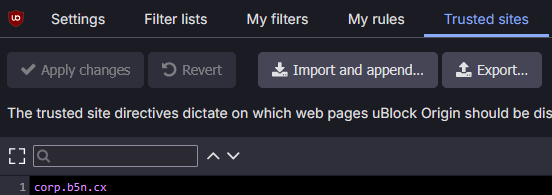
Once deployed, you will have to restart Firefox twice for it to take effect. Afterwards you'll see it in the uBlock Origin whitelist as a purple entry which denotes its status as a managed entry. If you whitelist a site then remove it later, it will be removed from the trusted sites list.
 You can use
 about:policies to view this configuration.
 Although there is no official ADMX from the uBlock Origin team, one is available here.