One Weird Trick™ to Proactively Backup Missing BitLocker Recovery Keys in Active Directory
A great source of unease for IT administrators is undoubtedly the nagging sense that, in spite of their best efforts, a user has fallen through the cracks, and the disaster that is a lost BitLocker key could befall them at any time. While some might lean on services like OneDrive to minimize the impact of such an event, and others invest time in reporting scripts to attempt to find these ticking time-bombs before they detonate, I'm here with a third option.
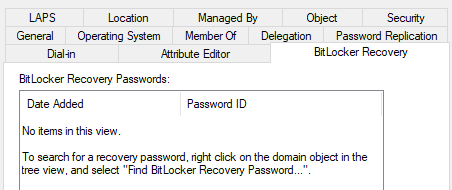 It's not hard to end up in this situation, an inexperienced administrator rolling with the old BitLocker policy is all it really takes for these outliers to begin emerging. Even if they realize their mistake in the future, the recovery keys are not retroactively backed up into Active Directory even if they do push an OS Drive policy to enable and perhaps enforce backups.
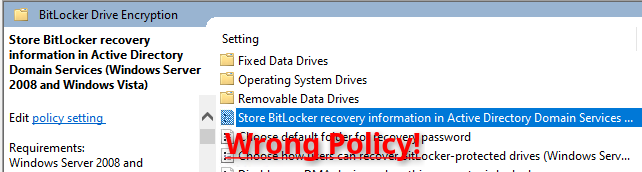
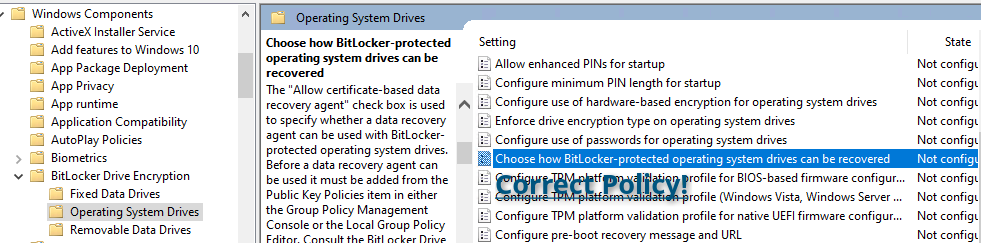 The challenge with this is while it's easy for an administrator to see whether a BitLocker recovery key exists for a computer, it's not easy to determine from afar whether that PC has BitLocker enabled or not, and is therefore a concern.
But I can use WinRM to figure it out!
Is the thought that some might have, but if you don't already have WinRM enabled, do you really want to open it up just for this purpose? What would be perfect is if the computer somehow knew that its key hadn't been backed up.
The security for backed up BitLocker keys renders them essentially invisible to non-Administrators, however through an obscure builtin group called "Pre-Windows 2000 Compatible Access", Authenticated Users by default have a permission called "List contents" (ADS_RIGHT_ACTRL_DS_LIST) on every object in Active Directory. While "List contents" does not actually grant you the ability to view any properties within an object, it does grant you the ability to list child objects.
Since BitLocker keys have a nice and descriptive CN value, it's therefore possible to enumerate through all backed up keys and match up the key protector IDs on the system with the ones in Active Directory. If the search doesn't show your protector, you can then attempt to back it up proactively.
The value of this is that clients need only perform a single LDAP query to determine if there's a problem, and if there is a problem, it can solve itself in the majority of cases. In my environment, I've now quietly remediated missing keys on nearly 100 workstations without any issues. Attached below is the script I wrote to do this. There's no dependency on the Active Directory PowerShell cmdlets, it uses the ADSISearcher type accelerator which uses built in .NET Framework libraries to perform LDAP operations.
$MountPoint = "C:"
$ErrorActionPreference = "Stop"

if (-not (Get-CimInstance Win32_ComputerSystem -Property PartOfDomain).PartOfDomain)
{
    Write-Output "Workstation is not domain joined. Exiting."
    Exit 0
}

if (-not (Get-Module -ListAvailable -Name BitLocker))
{
    Write-Output "The BitLocker module is not installed. Exiting."
    Exit 0
}

$OSVolume = Get-BitLockerVolume -MountPoint $MountPoint

if ($OSVolume.VolumeStatus -eq "FullyDecrypted" -and $OSVolume.ProtectionStatus -eq "Off")
{
    Write-Output "$MountPoint has no BitLocker encryption. Exiting."
    Exit 0
}

$PasswordKeyProtectors = $OSVolume.KeyProtector | Where-Object {$_.KeyProtectorType -eq "RecoveryPassword"}
if ($null -eq $PasswordKeyProtectors -or $PasswordKeyProtectors.Count -eq 0)
{
    Write-Error "Couldn't find any password key protectors"
    Exit 1
}

$ComputerDN = ([ADSISearcher]"(&(objectClass=computer)(cn=$env:COMPUTERNAME))").FindOne().Properties['distinguishedname'][0]

if ([string]::IsNullOrEmpty($ComputerDN))
{
    Write-Error "Failed to retrieve distinguished name for this PC using ADSISearcher. No line of sight to a DC?"
    Exit 1
}

# Actual objectClass for the object we're interested in is msFVE-RecoveryInformation
# But we can't search for that as all the properties are invisible to us
# All we can see is the path, which does contain the key protector ID
$Searcher = [ADSISearcher]'(objectClass=*)'
$Searcher.SearchRoot = [ADSI]"LDAP://$ComputerDN"
$Searcher.SearchScope = 'OneLevel'
# ex: LDAP://CN=2026-06-17T14:57:15-06:00{B879751F-FFD4-4C43-ABBF-93CF6DA5115A},CN=ExampleComputer,OU=Computers,OU=IT,OU=Employees,DC=example,DC=local
$ChildObjects = $Searcher.FindAll().Path

$RetVal = 0
foreach ($Protector in $PasswordKeyProtectors)
{
    $KeyProtectorId = $Protector.KeyProtectorId
    Write-Output "Checking $KeyProtectorId"
    if ($ChildObjects -like "*$KeyProtectorId*")
    {
        Write-Output "Looks like $KeyProtectorId was already backed up to Active Directory! Nothing more to do."
        continue
    }
    Write-Output "Going to try backing up $KeyProtectorId to Active Directory"
    try
    {
        Backup-BitLockerKeyProtector -KeyProtectorId $KeyProtectorId -MountPoint $MountPoint
    }
    catch
    {
        Write-Warning "Failed to backup $KeyProtectorId to Active Directory"
        Write-Warning $_
        $RetVal = 1
    }
}
Exit $RetVal